Best Sticker Making Machines in 2026: Tested & Ranked
Our hands-on rankings of the best cutting machines for making custom stickers - from full-colour Print Then Cut to vinyl decals and kiss-cut sticker sheets!
By Marnie Hofstadt·Updated March 18, 2026
We may receive commissions on purchases made from our links. Learn more
Making custom stickers at home has never been easier - or more addictive. It doesn’t matter whether you're printing full-colour die-cut stickers for your shop, cutting vinyl decals for laptops and water bottles, or making planner stickers by the sheet… the right machine makes ALL the difference!
We've ranked the best sticker-making machines based on what actually matters for sticker crafters: Print Then Cut accuracy, printable vinyl compatibility, which ones have helpful software for sticker design, and overall value.
Top Pick
#1 — Top Pick
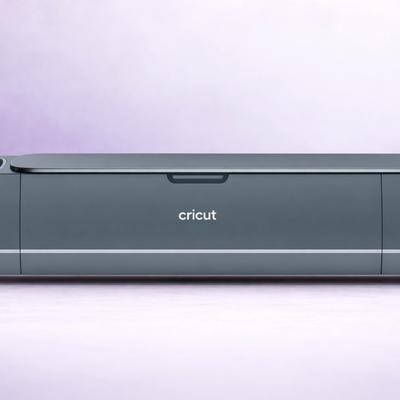
Cricut Maker 4
The Maker 4 pairs Cricut's best-in-class Print Then Cut with the widest material range of any home cutter. Whether you're making glossy vinyl stickers, waterproof labels, or textured cardstock die-cuts, it handles them all. Design Space's sticker templates and the new Create AI make designing custom stickers fast and intuitive.
4.8
★★★★★★★★★★
Exceptional
Materials 300+
Cutting Force 4,000 gf (4 kgf) via Adaptive Tool System
Connectivity Bluetooth + USB-C (cable included)
Software Cricut Design Space (free; desktop + mobile app) with optional Cricut Access subscription.
✓Best Print Then Cut accuracy in a Cricut - registration marks are consistently precise
✓Cuts printable vinyl, sticker paper, cardstock, and specialty sticker materials
✓Design Space has dedicated sticker templates and a huge image library
✓Strong enough for thick sticker sheets and laminated stickers
Watch Out For
✗Overkill if you only make basic vinyl stickers - the Maker's extra force isn't needed for most sticker materials
✗Priciest option on this list
Runner Up
#3 — Runner Up
Silhouette Cameo 5
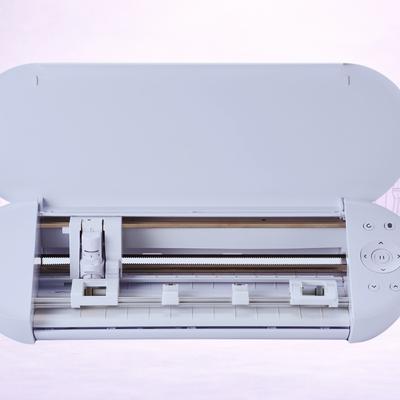
The Cameo 5 brings a different approach to sticker crafting: Print & Cut works with any brand of printable vinyl (not just Silhouette's own), the software is subscription-free, and the 5,000 gf force handles even thick laminated sticker sheets without flinching. If you buy sticker supplies in bulk from third-party vendors, the Cameo 5 saves you money on every sheet.
Software Silhouette Studio (free basic edition; Designer Edition $49.99; Designer Edition Plus $74.99; Business Edition $99.99). Also: Silhouette Go (mobile app), Silhouette Web (browser-based, optional).
✗Print & Cut calibration has a steeper learning curve than Cricut's
Best Value
#2 — Best Value
Cricut Explore 5
The Explore 5 does everything the Maker 4 does for stickers - Print Then Cut, printable vinyl, sticker paper - at a much lower price. You lose the Maker's heavy-material cutting force, but for sticker making specifically, you don't really need it. The compact redesign means it takes up less desk space, and Design Space's Guided Flows make sticker projects easy breezy for beginners.
4.5
★★★★★★★★★★
Exceptional
Materials 100+
Cutting Force 400 gf
Connectivity Bluetooth + USB-C
Software Cricut Design Space (free; desktop + mobile app) with optional Cricut Access subscription. New: Create AI feature for paid subscribers.
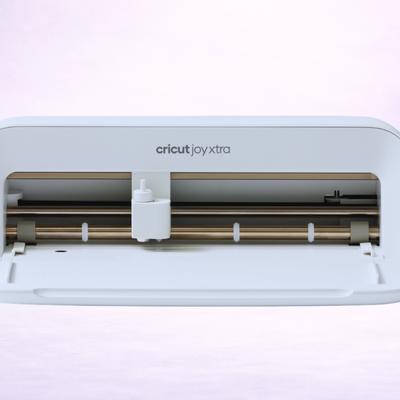
The Joy Xtra is the smallest Cricut with Print Then Cut - making it the ideal dedicated sticker machine. It cuts up to 8.5 inches wide, which covers standard letter-size sticker sheets perfectly. If stickers are your main craft and you don't need a full-size 12-inch cutter, the Joy Xtra is a smart alternative that takes up minimal space.
4.3
★★★★★★★★★★
Excellent
Materials 50+
Cutting Force Not disclosed - less than the Explore's 400 gf
Connectivity Bluetooth only - no USB cable connection
Software Cricut Design Space (free; desktop + mobile app) with optional Cricut Access subscription
✓Print Then Cut on standard letter-size sticker sheets
✓Smallest footprint of any machine on this list - fits in a drawer!
✓Affordable entry point for dedicated sticker makers
✓Same Design Space sticker templates as the full-size Cricuts
Watch Out For
✗8.5-inch max width limits you to letter-size sheets
✗No scoring, foiling, or advanced tools - stickers and simple cuts only
Best Budget
#5 — Best Budget
Silhouette Portrait 4
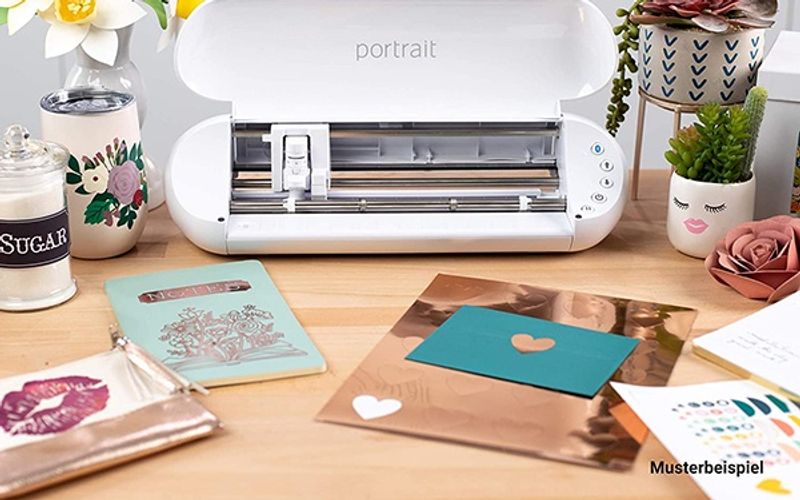
The Portrait 4 is Silhouette's compact cutter with Print & Cut capability. At 8 inches wide, we love how it handles standard sticker sheets and delivers the same subscription-free software advantage as the Cameo 5. For crafters who want to make stickers without committing to a full-size machine or a monthly subscription, it's the most affordable way in.
4.4
★★★★★★★★★★
Excellent
Materials 100+
Cutting Force 210 gf (Tool Holder 1 only)
Connectivity USB 2.0 (Full-speed) + Bluetooth
Software Silhouette Studio (free basic edition; Designer Edition for SVG import). Also: Silhouette Go (mobile), Silhouette Web (browser-based).
✓Print & Cut for custom stickers at the lowest price on this list
✓No subscription - same free Silhouette Studio software
✓Compact 8-inch format takes up very little space
✓Works with any brand of printable vinyl and sticker paper
Watch Out For
✗8-inch cutting width limits sheet size
✗Lower cutting force than the Cameo 5 - thick laminated stock may be tricky
#6 — Brother
Brother ScanNCut SDX125
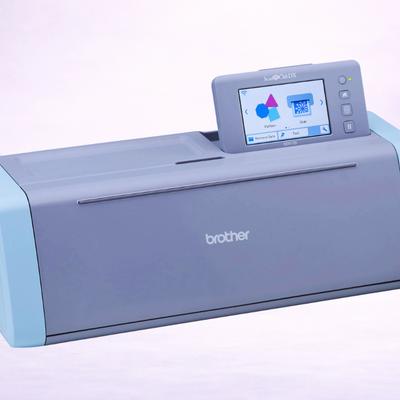
The ScanNCut takes a different approach: its built-in scanner lets you scan hand-drawn or printed designs directly and cut around them - no separate printer needed for Print Then Cut. If you're an illustrator or hand-letterer who wants to turn drawings into stickers without a complex printer-to-cutter workflow, the ScanNCut is an absolute beauty.
4.3
★★★★★★★★★★
Excellent
Materials 100+ (est)
Cutting Force Not disclosed - but can cut 3mm-thick.
✓Built-in scanner eliminates the need for a separate printer
✓Scan hand-drawn art and cut stickers directly — unique to Brother
✓No subscription required — CanvasWorkspace is free
✓Auto-blade adjusts to material thickness automatically
Watch Out For
✗Scanning workflow has a learning curve
✗Smaller community and fewer sticker-specific tutorials than Cricut or Silhouette
What Makes a Great Sticker Machine?
Once you’ve tested a few, you’ll know that not every cutting machine is equally good at stickers. The feature that separates a sticker-capable machine from a sticker-focused one is Print Then Cut (Cricut) or Print & Cut (Silhouette and Brother).
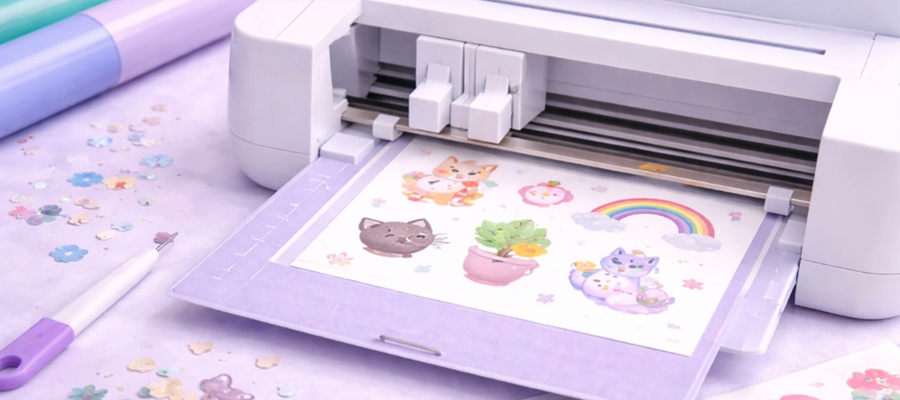
This lets you print a full-colour design on your home printer, then feed the sheet into the cutter… which reads registration marks and cuts precisely and beautifully around each sticker.
What if you don’t have Print Then Cut?
Well, it’s much harder! You're limited to single-color vinyl decals (still useful, but a fraction of what's possible). We’ve made sure that every machine on this list supports some form of print-and-cut workflow.
The Three Types of Stickers You Can Make
Vinyl decals - Single-colour cut vinyl (Oracal 651, Cricut vinyl, etc) applied to surfaces. No printer needed for these. They look great for logos, lettering and all kinds of simple shapes. Any cutter on this list handles these!
Print Then Cut stickers - Full-colour designs printed on an inkjet printer using printable vinyl or sticker paper, then precision-cut by the machine. Now this is where the magic happens for custom sticker shops, planner stickers, and the type of illustrated designs you see on Etsy.
Kiss-cut sticker sheets - Slightly different process. The machine cuts through the sticker layer but not the backing, creating peel-and-stick sheets. Most machines on this list support kiss cutting (with the right blade depth settings).
Sticker Printing Tip
For the best Print Then Cut results, use a dedicated inkjet printer with pigment-based inks (not dye-based). Pigment inks are waterproof when dry... meaning they won't smear when you apply a laminate layer. Canon PIXMA and Epson EcoTank models are our fave choices.
Cricut vs Silhouette for Stickers
These aren’t the only machines that make stickers, but they are by far the most popular. Both have models that make excellent stickers, and there are meaningful differences in the process that you need to understand before you buy one:
Cricut's Sticker Advantage
Cricut's Print Then Cut is - for us - the easiest to set up.
Design Space automatically generates the registration marks, sends the print file to your printer and then guides you through loading the printed sheet for cutting. It’s all pretty smooth sailing.
The sensor reads the marks and cuts with very little calibration. For beginners, this near-automatic workflow is going to save you a LOT of time (and probably a lot of wasted materials!).
Cricut also offers dedicated printable vinyl and printable sticker paper in their Smart Materials line, optimised for their machines. The downside is that you're always going to be buying Cricut-branded materials (at a premium), and Design Space requires that you stay online for it to work properly.
Silhouette's Sticker Advantage
What about Cricut’s main rival?
Silhouette's Print & Cut gives you more control - and more material freedom.
By that, we mean you can use any brand of printable vinyl, sticker paper, or label stock. The software works offline with no subscription. And at the high end of machines, the Cameo 5's 5,000 gf cutting force means even thick, laminated sticker sheets get clean cuts without tearing.
If we’re nitpicking, the main thing we’d complain about is calibration.
Silhouette's Print & Cut registration sometimes needs manual adjustment, and the learning curve is a lot steeper. But once dialled in, it's rock-solid - just expect a few test sheets while you get there.
Don’t Forget Brother!
It’s not all about Cricut and SIlhouette!
The Brother ScanNCut sidesteps the printer entirely.
Its built-in scanner captures hand-drawn or pre-printed designs and cuts around them. If you're an illustrator who sketches sticker designs by hand, this is PERFECT - the ScanNCut turns your drawings into stickers without any printer-to-cutter hassle.
It's a different approach, but for the right crafter, it's really quite attractive.
Sticker Materials: What to Use
Printable Vinyl
The most popular sticker material.
It’s available practically everywhere, in glossy, matte, and transparent finishes.
Print your design, cut it, and apply it to any smooth surface. Waterproof options are available from most brands. Cricut's own printable vinyl works seamlessly with their machines, but third-party options from brands like PPD, Koala, and Sticker Paper Co work with any machine.
Printable Sticker Paper
This is similar to printable vinyl but thinner and paper-based. It’s ideal for planner stickers, labels and most indoor use. But it’s not waterproof unless laminated.
In the long run, it’s typically much cheaper than printable vinyl if you're making stickers in high volume - say, for a small biz.
Laminate Overlays
A clear adhesive sheet applied over printed stickers before cutting.
This adds waterproofing, UV protection and a lovely glossy or matte finish. It’s damn near essential for stickers that will be used outdoors or on water bottles.
Some crafters swear by self-adhesive laminate sheets; others we know prefer a laminating machine for a smoother finish. It’s up to you.
Waterproof Sticker Formula
For waterproof stickers that survive dishwashers and outdoor use, the combo is: pigment ink printer + printable vinyl + laminate overlay. This three-layer approach is what most small sticker businesses use and any machine on this list can cut the final laminated sheets.
How Print Then Cut Actually Works
If you've never used Print Then Cut, here's how it works - it's the same across all machines, with some minor software differences:
Design your stickers in the machine's software (Design Space, Silhouette Studio, or CanvasWorkspace). Add a bleed border so cuts don't leave white edges. Very important!
Print the sheet on your inkjet printer. The software will adds small registration marks around the edges of the design.
Load the printed sheet into the cutting machine on a mat (or matless for supported materials).
The machine's sensor reads the registration marks and calculates the exact position of each sticker on the sheet.
The blade cuts around each design with precision, following the printed outlines. You can choose die-cut (through the backing) or kiss-cut (through the sticker layer only).
Weed and peel - remove the excess material and your stickers are ready to use or sell! Easy, peasy.
The entire process takes about 5-10 minutes per sheet once you have it set up. Batch production with identical sheets is even faster - just load, cut, repeat!
Tips for Starting a Sticker Business
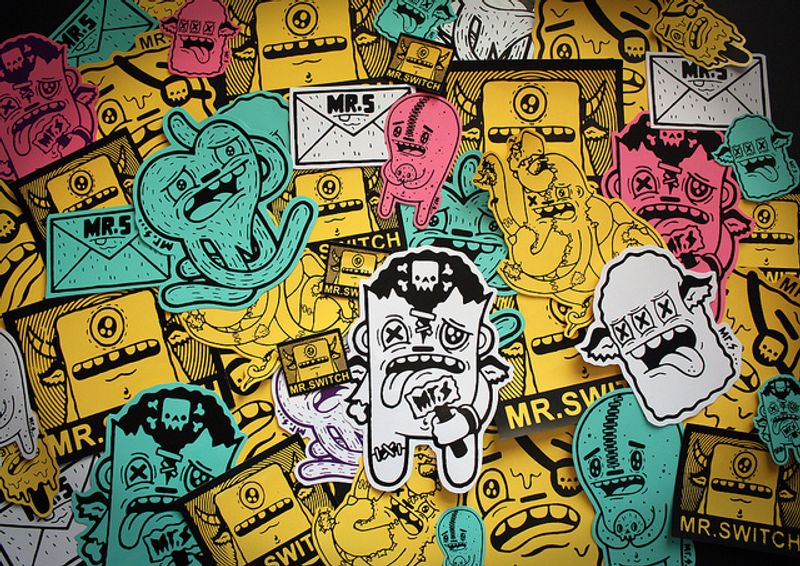
A stylish vinyl sticker pack, creative commons via Mr. Switch CRS FERc
We get a lot of questions from crafters looking to sell their works…
If you're thinking about selling stickers on Etsy, at markets, or through your own shop… here are a few practical pointers from crafters who've done it:
Start with the Explore 5 or Cameo 5 - you don't need a Maker for stickers, and the money you save on the machine can go toward materials and marketing
Buy printable vinyl in bulk - single sheets are expensive; rolls or multi-packs from Amazon bring the cost per sticker waaaay down
Invest in a decent inkjet printer early - it’s just a no-brainer. Print quality is the biggest factor in how professional your stickers look, and a good printer pays for itself very quickly
Laminate everything you sell - unlaminated stickers feel cheap and don't survive real-world use; the extra step is worth it if you want to attract repeat buyers
Create sticker sheets, not just individual stickers - sheets sell better, look more professional and are more efficient to produce
Test your blade depth on scrap material - a kiss cut that goes slightly too deep will cut through the backing; slightly too shallow and stickers won't peel cleanly. Test, test, test!
Frequently Asked Questions
Any inkjet printer works for Print Then Cut stickers. For the best results and waterproof output, use a printer with pigment-based inks rather than dye-based. Popular choices include the Canon PIXMA series and Epson EcoTank models. Laser printers won't work with most printable vinyl materials.
Die-cut stickers are cut all the way through both the sticker and backing, giving you individual stickers. By contrast... kiss-cut stickers are cut through the sticker layer only, leaving the backing intact - this is how sticker sheets work. Most machines on this list can do both; you just adjust the blade depth and you're good to go.
Of course! Use printable vinyl (not sticker paper) with a pigment-ink printer, then apply a laminate overlay before cutting. This three-layer combination produces stickers that will survive dishwashers, rain and medium-term UV exposure. All six machines on this list can cut laminated sticker sheets.
Crafters argue about this all the time! For most sticker businesses, we would say that the Cricut Explore 5 or Silhouette Cameo 5 are the sweet spot. Both handle Print Then Cut efficiently, and the choice comes down to brand preference: Cricut for easier setup and community, Silhouette for material freedom and no subscription. The Maker 4 is overkill unless you also sell non-sticker products.
Yes - two ways. First, any cutting machine can make single-colour vinyl decals without a printer. Second, the Brother ScanNCut has a built-in scanner that lets you scan hand-drawn designs and cut around them directly. For full-colour printed stickers, though, you'll definitely need an inkjet printer.
It depends on sticker size, but a standard letter-size sheet (8.5 x 11 inches) typically fits 12-20 stickers of 1.5-2 inch size. Print Then Cut machines need a small margin around the edges for registration marks, so you lose about half an inch on each side. Sticker sheets optimised for planner stickers can easily fit 30+ small stickers.
Get the best vinyl cutting tips & deals
Join 5,000+ crafters who get our weekly newsletter with expert tips, project ideas, and exclusive deals.