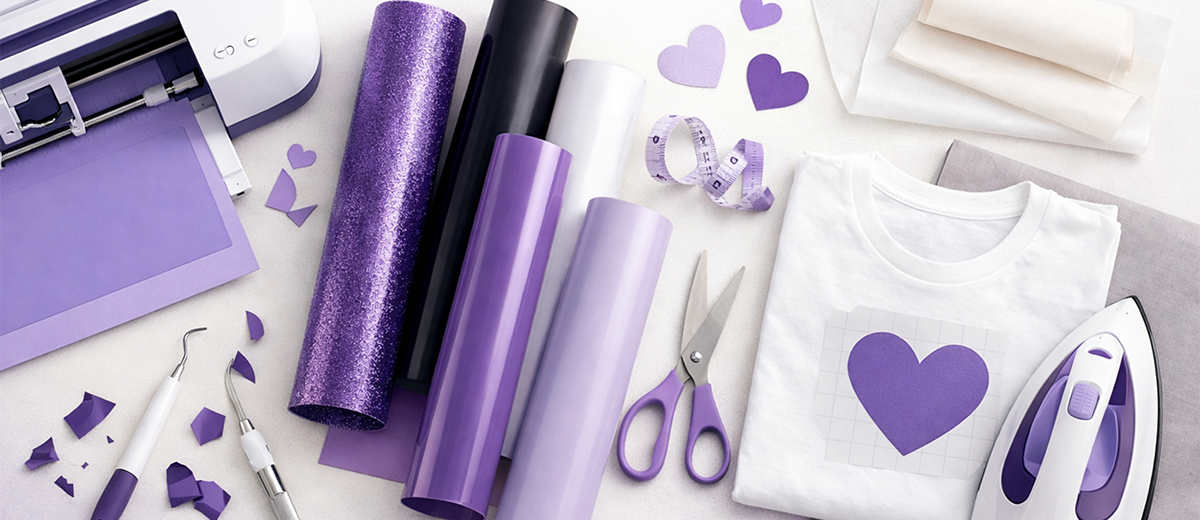
Discovering all the different things that you can create is one of the great joys of owning a vinyl cutting machine. But we're sure we're not the only ones that have been stumped about how to cut heat transfer vinyl.
What's it for? How can I cut it? Where does the heat come from?!
All valid questions.
But never fear — after a brief 'back to school' learning curve, we're here to hand down the tips and tricks you need to make vinyl heat transfer paper (also known as heat press vinyl) work for you.
What is Heat Transfer Vinyl Used for?
First things first, you're probably wondering what exactly heat transfer vinyl is used for anyway.
Basically, it's a type of vinyl material that needs to be ironed on to certain fabrics. Whereas most 'normal' vinyl will simply stick straight on to most hard surfaces, heat transfer vinyl must be heat pressed in order to adhere to softer fabrics.
The most common use of heat press vinyl is for T-shirt designs.
Crafters also use it for pillows, bags, other clothes and basically any other fabric you can think of. If you need an iron to stick the design on, then you need to use heat transfer vinyl.
How to Cut Heat Transfer Vinyl
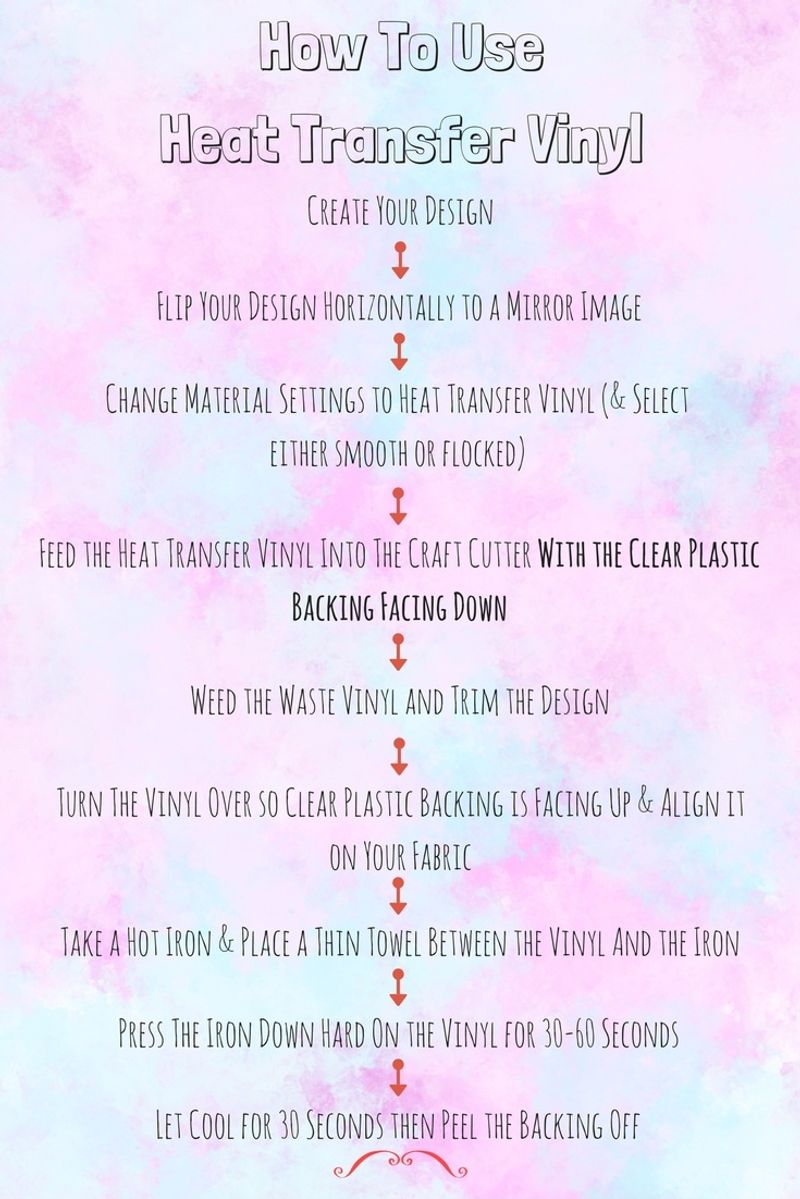
Although working out how to cut heat transfer vinyl may seem a little overwhelming at first, it's actually really simple once you get your head around it.
We would recommend starting small with a simple design on a cheap, $1 T-shirt. Once you've found your groove with heat transfer, you'll be confident enough to progress on to the next level.
We've summarized below the process for Silhouette heat transfer vinyl and for Cameo heat transfer, as they're the most popular machines in use right now.
Thankfully, the process doesn't vary too much between vinyl cutting machines, so you'll be able to follow these instructions and simply adapt them to your specific craft cutter.
How to Cut Heat Transfer Vinyl for Silhouette Cameo
Using heat transfer vinyl for Silhouette Cameo is simple and straightforward.
Here's a step-by-step:
- Create your design within Silhouette Studio
- Flip your design horizontally so it's a mirror image of the original (this is so the design is facing the right way when you iron it on). You can do this by selecting 'Mirror' from the drop-down 'Object' tab along the top, and then clicking 'flip horizontally'
- Move the mirror image into the cutting area so it fits within the material
- Change the material settings to Heat Transfer Vinyl and select either 'smooth' or 'flocked' (a fluffier texture)
- Feed the heat transfer vinyl into the Cameo with the clear plastic backing facing down
- Click 'Send to Silhouette' to begin the cut job
Easy peasy!
How to Cut Heat Transfer Vinyl for Cricut
How to use Cricut Iron-On Vinyl
It's just as easy to use heat transfer vinyl for Cricut as it is for Silhouette.
Here's a step-by-step guide:
- Create your design within Cricut Design Space
- Click the 'Mirror image' checkbox at the bottom of the Mat Preview window
- Place the heat transfer vinyl with clear plastic backing facing down on your cutting mat
- Select 'Iron-On' on the Smart Set Dial (in the Cricut Explore series) for matte and glossy materials, and the next setting clockwise (before 'Light Cardstock') if you're using glitter heat transfer
- Then follow the instructions onscreen to load, set and cut
After the Cutting…
Once your machine has cut your design, remove it from the cutting mat and weed it as you would a normal vinyl cut.
Weeding is the act of removing all the waste vinyl from the design. Check out our guide to weeding and transferring if you're a beginner.
Some people just use a safety pin or a bubble popper for weeding, but our pick for accuracy and speed is always the X-Acto Knife Set.
It's also a good idea now to trim the material closely around your design so you're only navigating around the heat press vinyl that you need.
Turn the vinyl over so the clear plastic backing is now facing up (and you're looking at the original, not a mirror image) and place it on your fabric so you can correctly align it.
Once you're satisfied, heat up your iron and take a thin towel, sheet of parchment paper or Teflon sheet and place it between the iron and the vinyl. Then, press the iron down, hard, on to the heat transfer vinyl for around 30 to 60 seconds. The vinyl you buy will specify the exact heat and pressing time you need, so check carefully before you dive in.
Remove the hot iron and allow the design to cool momentarily for around half a minute. After that time, start to peel the clear plastic backing off the design. If part of the vinyl design start coming off too, then you need to spend longer on the heat press. Only peel once the vinyl is thoroughly affixed to the fabric.
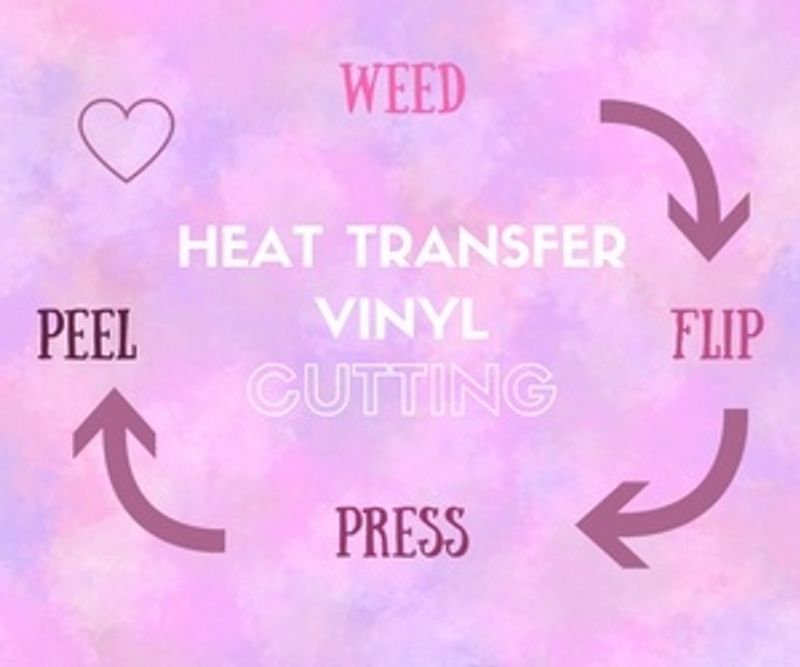
We call this process after the cut: WEED, FLIP, PRESS, PEEL.
Different Types of Heat Transfer Vinyl
There are lots of types of heat transfer vinyl to choose from before you get started.
First of all, you'll need to choose between smooth and flocked material.
And from there, the world's your oyster: glitter, matte, glossy, neon, foil or printable. The latter is great for more intricate, multicolored designs, which you can print on to the material before you cut it.
Let's take a look at some of the heat transfer vinyl materials on offer from our favorite brands…
Cricut Iron On Vinyl
Here are a few of our favorites from their collection:
- Cricut Iron On Lite, White
- Cricut Iron On Lite, Black
- Cricut Iron On Glitter, Red
- Cricut Iron On Lite, Pumpkin
- Cricut Iron On Glitter, Fluorescent Pink
- Cricut Printable Iron-On for Scrapbooking
- Cricut Iron On Lite, Metallic Cyan
- Cricut Iron On Glitter, Lipstick
- Cricut Iron On Lite, Blush
Check entire Cricut Iron On Vinyl product line
Silhouette Heat Transfer Vinyl
And here's a few of the most popular materials from Silhouette:
- Silhouette Smooth Heat Transfer 9″ x 36″ — Black
- Silhouette Glitter Heat Transfer 12″ x 36″ — Gold
- Silhouette Printable Heat Transfer Material for Light Fabrics
- Silhouette Flocked Heat Transfer 12″ x 36″ — White
Check entire Silhouette Heat Transfer Vinyl product line
Heat Press Vinyl by Other Brands
If you haven't got a Silhouette or Cameo machine, or if you simply want to try different brands, then check out the slew of other heat press vinyl materials on offer.
The only thing to remember is that you need to buy the correct size for your machine (or be prepared to trim it down accordingly!).
Here are the most popular heat transfer vinyl alternatives:
- Siser EasyWeed Heat Transfer Vinyl, 12″ x 15″, Color Starter Bundle
- Firefly Craft Heat Transfer Vinyl for Silhouette and Cricut, 12″ x 20″
- Rozzy Crafts 12 Color Heat Transfer Vinyl Starter Pack, 12″ x 10″
- Siser Glitter Heat Transfer Vinyl, 10″ x 12″, 12 Color Starter Bundle
- Outus Glitter Heat Transfer Vinyl, 6 Sheets in Assorted Colors
What You Need to Get Started
If you've got this far, you're probably raring to get going with heat transfer vinyl cutting.
Here's a quick checklist of everything you need before you start.
- A vinyl cutting machine (duh! Check out the best ones here)
- Heat transfer vinyl (see above for options)
- T-shirt, or whichever fabric you're using
- Iron or a specialist heat press
- Towel, parchment paper or Teflon sheet
- X-Acto Knife Set for weeding
And, of course, your imagination…
Quick Tips
Working out how to use heat transfer vinyl can be a little overwhelming, so we would suggest starting small until you're more confident with the process.
Using flocked vinyl is more forgiving than smooth. Any small errors in the weeding or peeling process are generally lost in the texture of the flocked material, whereas they stand out clearly on the smooth vinyl.
Glitter heat transfer vinyl can be tricky to weed so we'd only recommend using it once you've gotten used to it with normal vinyl cutting.
Start with a simple, one color design for a T-shirt. The wide open space of T-shirt fabric gives you lots of room to maneuver and isn't too fiddly for your first time.
If you are using heat press vinyl on clothing, always remember to wash those clothes before you transfer the design onto them. If not, you may find that the fabric starts to contract around the transfer when you do wash it for the first time.
Remember that your vinyl cutter should only cut the heat transfer side of the vinyl and shouldn't perforate the clear plastic backing. Don't be tempted to increase the pressure so the machine cuts through the material as this will ruin the vinyl during the iron-on process.
So, now you know how to cut heat transfer vinyl — what will you be making first?
For more tutorials and guides aimed at helping you get the most out of your machine, be sure to visit our How To section.